Before you start
Sign in to the international app with the account you want to use for practice. Check the question source, task and any access or credit requirement before starting. You can review your details in My Account and compare plans and credits.
For audio tasks, use a quiet place and check that you can hear playback. For Speaking, select the correct microphone and allow microphone access when your browser asks. Say a short test sentence and listen back if the task offers a recording check.
Choose a task, section set or full mock
Choose a practice mode based on how much you want to complete in one session: one task, a whole section, or all four sections together.
Individual Practice: focus on one task
A task is a specific type of question or activity within Reading, Listening, Writing or Speaking. Choose Individual Practice to work on one question, passage or task group at a time, rather than a complete section. A passage or task group can contain several questions.
Reading
- Complete the WordsFill gaps in words.
- Read in Daily LifeRead everyday texts.
- Academic PassageAnswer questions about an academic text.
Listening
- Choose a ResponseSelect an appropriate reply.
- ConversationListen to a conversation and answer questions.
- AnnouncementListen to an announcement and answer questions.
- Academic TalkListen to an academic talk and answer questions.
Writing
- Build a SentenceArrange word groups to complete a sentence.
- Write an EmailRespond to an email task.
- Academic DiscussionContribute to a discussion.
Speaking
- Listen and RepeatRepeat spoken sentences.
- Take an InterviewAnswer a series of interview questions.
This mode is a useful starting point early in your preparation. It also suits focused practice on one task type or theme, such as campus emails or everyday conversations.
Section Mock Test: complete one whole section
A section set is a complete practice set for one skill, such as a full Reading section. Choose Section Mock Test within Reading, Listening, Writing or Speaking to work through that section’s tasks. The interface, task sequence and time limits follow the corresponding TOEFL 2026 section.
Use a section set when you know the question types and want to practise pacing and concentration across a whole section.
Mock Exam: complete all four sections
- Reading
- Listening
- Writing
- Speaking
A full mock brings all four sections together in one sitting, in this order: Reading → Listening → Writing → Speaking. Open the separate Mock Exam entry in the sidebar. Its section flow and time allocation follow the TOEFL 2026 test, so you can rehearse the complete experience and manage your pace across sections.
Choose your question source before starting. The English app lists Practice Questions, New TPO and Latest Questions; access varies by plan. Use the TOEFL 2026 setting for the current format and check the selected set’s details. Older-format practice has its own task names and timing.
See ETS’s current TOEFL test structure and timing for the official examination format.
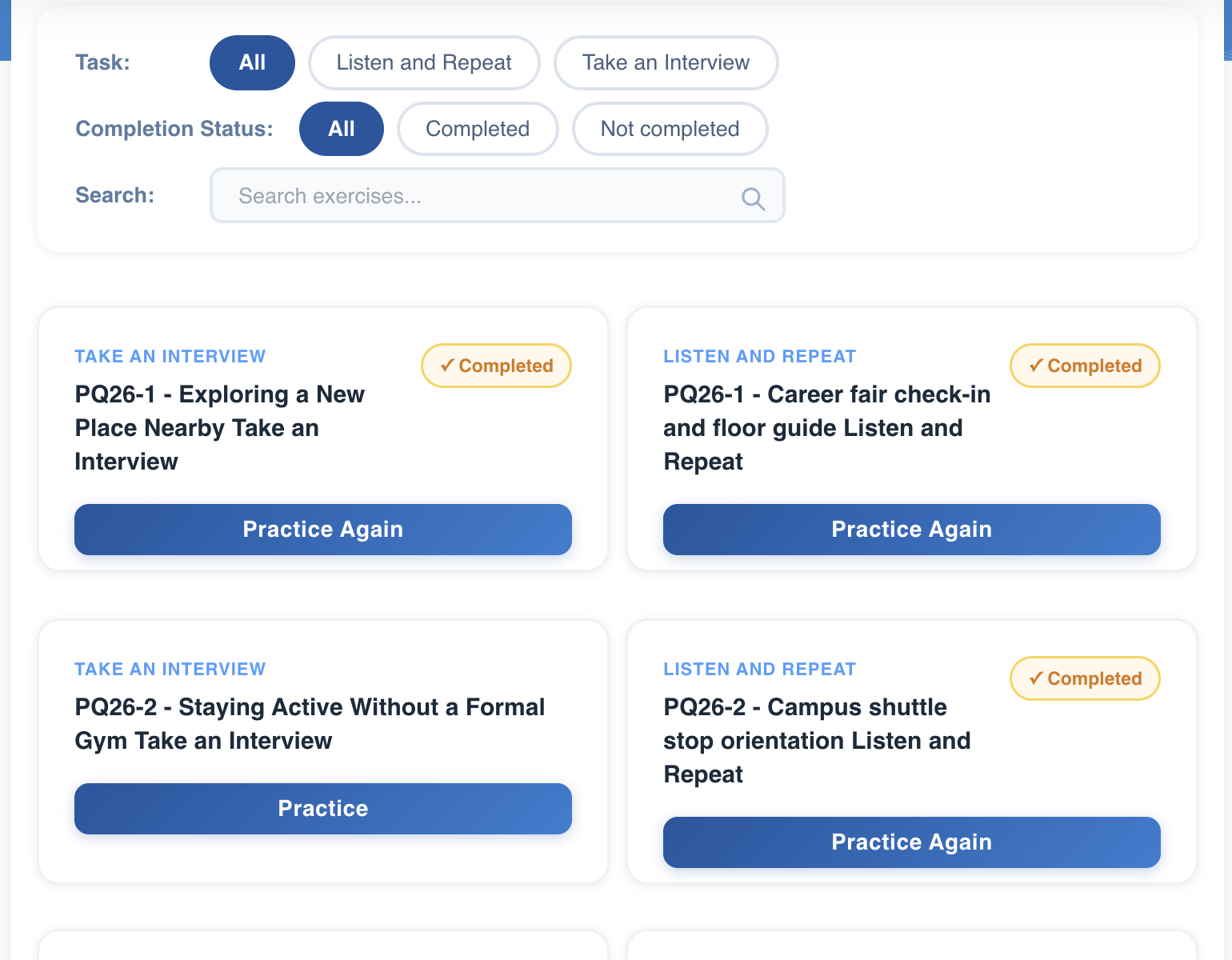
In this Speaking example, use the task filter to narrow the list, then choose Practice on a question. Previously completed questions show Practice Again.
Open full-size imageReading
- Open TOEFL Reading.
- Choose your question source and mode. In Individual Practice, use the task filter, such as Complete the Words, Read in Daily Life or Academic Passage.
- Choose a question and select Practice. Read the instructions, enter or select your answers, and complete the task using its on-screen controls.
What to expect: a completed practice result with answer review. Compare missed answers with the passage before moving to a different question.
A short, silent recording of the English Read in Daily Life interface: read the email, choose an answer and move to the next question. The question and timing shown are examples.
Text walkthrough · no audio
- Read the email on the left and compare it with the question on the right.
- Choose an answer, check it against the passage, then use Next to continue.
Listening
- Open TOEFL Listening and choose a source and mode.
- Choose a task or set and select Practice. Check your volume before starting the audio.
- Listen and answer according to the task instructions. Complete the task using its on-screen controls.
What to expect: an answer review for the completed task. For one missed answer, identify the detail you did not hear before trying another question.
Speaking
- Open TOEFL Speaking. Choose Listen and Repeat or Take an Interview, or choose a section set.
- Select Practice and follow the preparation and recording prompts. Check your microphone before speaking.
- Finish the required responses and follow the task’s submission prompt for evaluation.
What to expect: a practice estimate and response feedback after evaluation. Listen to your recording alongside the transcript before using a pronunciation or wording suggestion.
Writing
- Open TOEFL Writing and choose a task or section set.
- In the 2026 format, tasks include Build a Sentence, Write an Email and Academic Discussion. Read the selected task’s instructions and complete your answer.
- Check that you have answered the prompt, then select AI Evaluation for an email or discussion response. Follow the selected task’s completion prompts for sentence-building practice.
What to expect: answer checking for sentence-building tasks; scoring and response feedback for evaluated email and discussion responses. The suggested rewrite does not replace the score for your submitted answer.
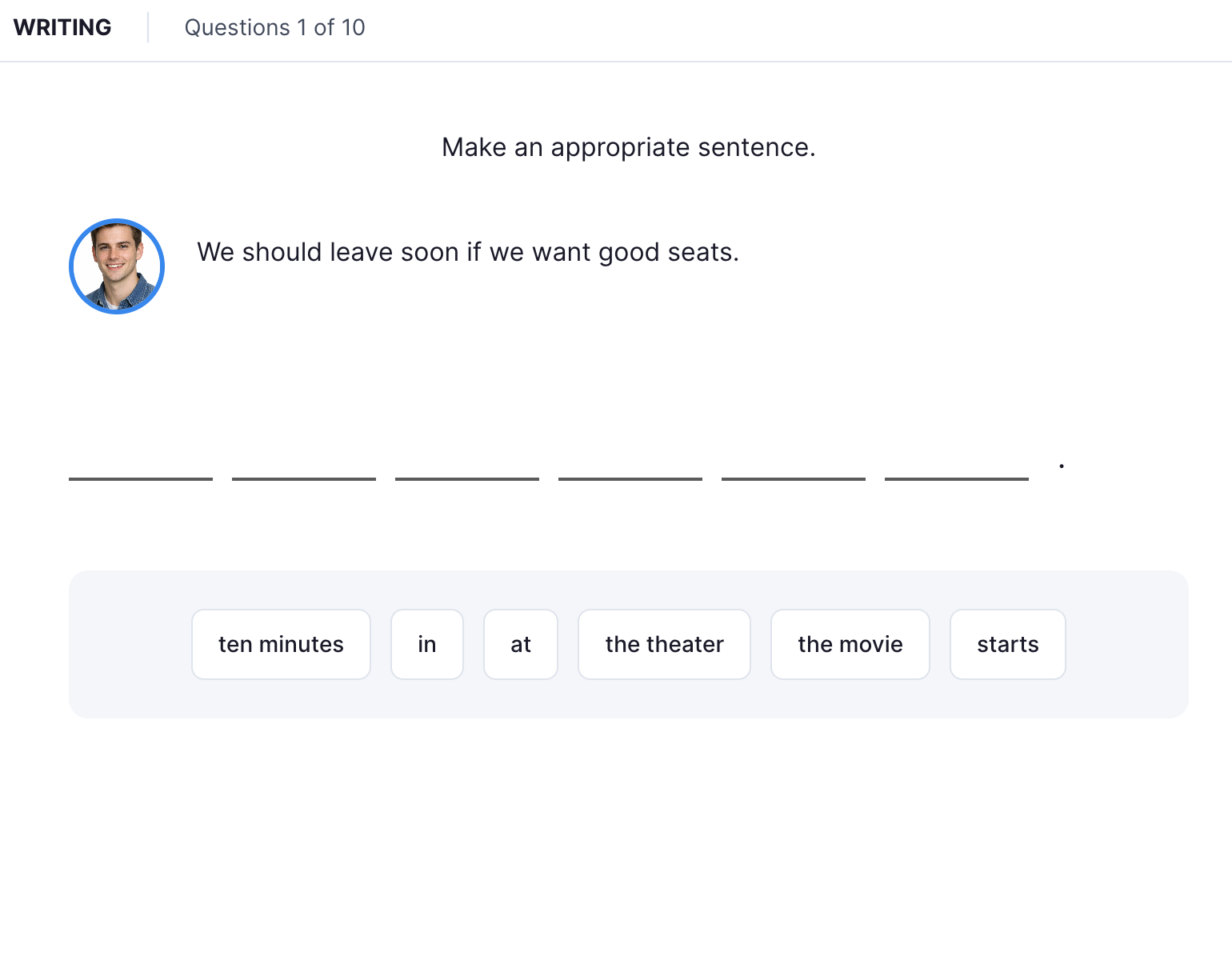
Build a Sentence uses word groups to complete the response. It is a different task from typing an email or an academic discussion answer; follow the instructions for the task you selected.
Open full-size imageTake a full mock test
- Open Mock Exam in the TOEFL sidebar.
- Choose the question set and read its access requirement and instructions. Set aside time for all four skills, with sound and microphone ready.
- Start the selected mock and follow its sequence and submission prompts.
What to expect: a full-mock result rather than a single-task result. A section set is not a full mock. Do not assume every set is free or that an interrupted test can be resumed.
Find your result and take the next step
Open History in the TOEFL app. Locate the attempt by time or question and choose View result when available. Keep the exam, task and attempt together when comparing results.
Use the TOEFL scores and feedback guide to choose one specific improvement. Complete another practice attempt to apply it; viewing a rewrite alone is not a new attempt.
Put it into practice
Open TOEFL practiceYour account and responses
Use My Account for account details. Read the international Privacy Policy for the published data terms, including its statements about content and model use. Contact support if you need clarification before submitting personal information.